Smart TV Player: IPTV Smarters
- 4.2
- Rating
- 1.00M
- Installs
- Free
- Price
 Analysis by App-foxy
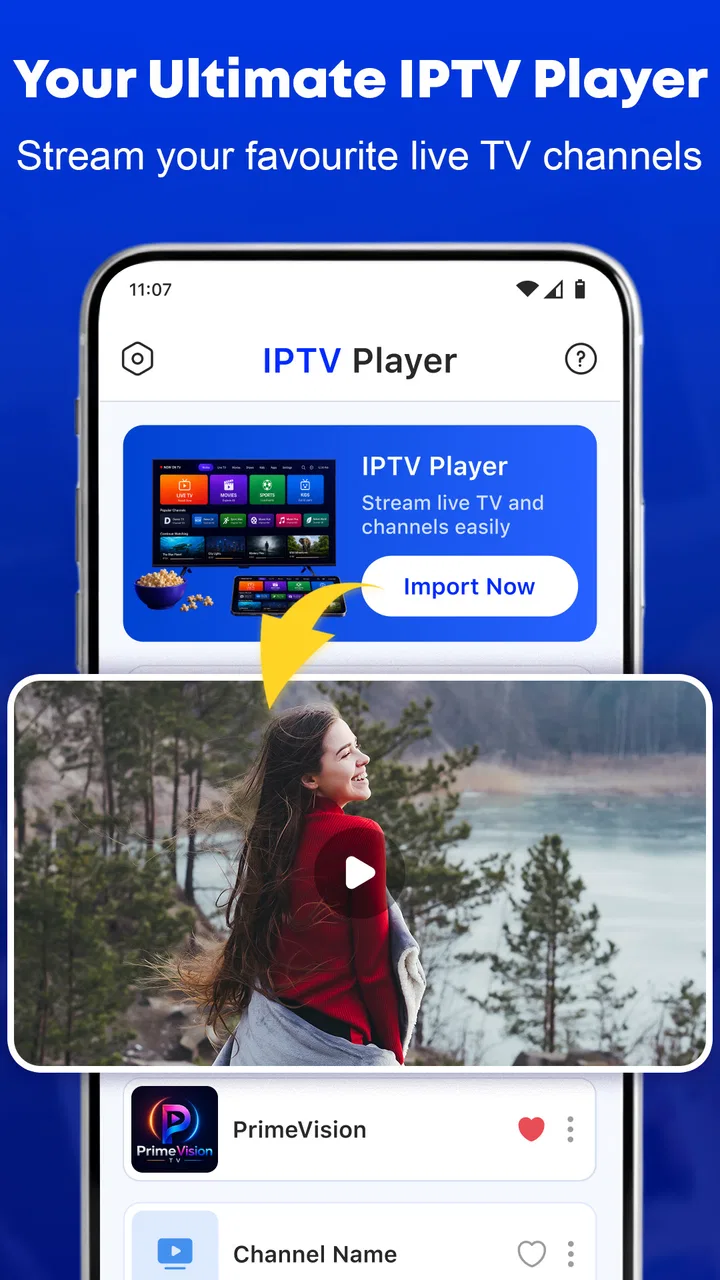
I approached Smart TV Player: IPTV Smarters as someone who already has an IPTV playlist and wants a simpler path from that list to a larger screen. The app sits in the video players and editors category, but its practical purpose is much narrower: it is a player for bringing IPTV content into one viewing workflow and sending it to a television when the setup supports casting. That focus is useful because it avoids pretending to be a full entertainment service. You bring the source, and the app is meant to make watching it more comfortable.
My first impression is that this is best understood as a convenience layer rather than a replacement for an IPTV provider. It does not turn an empty device into a television service by itself. Its value begins when you already have a legitimate playlist or service connection and need an accessible way to browse and play it. For someone watching on a phone, tablet, or compatible TV setup, that distinction matters before installing anything.
From an IPTV playlist to the living-room screen
I find it useful to think of casting as a separate part of the setup, not a test of the playlist itself. Once local playback works, checking the receiver and home-network connection gives a clearer picture of whether the remaining hurdle is the TV handoff. That distinction sets up a closer look at what to expect when use becomes heavier.
You May Also Like

 Blood Strike: 2.5 Anniversary
Blood Strike’s Loadouts Turn Every Drop Into a Tactical Gamble
A close look at Blood Strike’s custom loadouts: how fast access to signature weapons reshapes its battle royale rhythm, rewards preparation, and narrows the gap between fights.

 Pandora - Music & Podcasts
Pandora’s Music Is Easy to Start, but Harder to Recover
Pandora’s strength is its low-effort path from a seed to a station. Its weak spot is how much confidence it asks you to place in connection, setup, and quiet recovery.

 8 Ball Pool
 Is Built on Rivalries, Rematches, and Routine
A close look at the rivalries, rematches, shared routines, and unanswered safety questions that turn a quick pool match into a persistent mobile community.

 Samsung Music
’s Quiet Strength Is Playing What You Already Own
Its reach comes less from spectacle than from dependable access to a personal library. That simplicity is both the app’s strongest retention engine and its ceiling.

 AccuWeather: Weather Radar
AccuWeather Review: A Quick, Clear Forecast for Everyday Decisions
For everyday plans, the best forecast is the one you can understand quickly. AccuWeather makes rain timing, radar, and local conditions easy to act on, with a few trade-offs.

 Hill Climb Racing
Why Hill Climb Racing Still Turns Crashes Into One More Run
A tiny car, a bumpy hill and one more upgrade: Hill Climb Racing keeps resurfacing because its simple chaos makes every near-miss feel personal.
More From Our News Desk



The starting point: knowing what you are bringing into the app
The smoothest experience starts before opening the player. I would first make sure the IPTV provider has supplied the correct playlist details and that the subscription or source is intended for use with a third-party player. That small preparation step prevents a common mistake: blaming the playback app when the real problem is an expired account, an incomplete playlist, or a service that is unavailable.
Smart TV Player: IPTV Smarters is free, and it is rated for Everyone, so it is easy to consider for a shared household device. The developer shown for the app is ModSik. Its current version is 1.1, and it requires Android 10 or newer, which is the first practical filter for older phones, tablets, or television hardware. If your device is below that requirement, the workflow ends before playlist setup begins.
I also noticed that the app has reached over a million installs and holds a 4.2 average from around three and a half thousand ratings. Those figures suggest that the basic idea is attracting a meaningful audience, but they should not be mistaken for a guarantee that every IPTV source will behave identically. Playback depends heavily on the source, network, device, and casting route.
Entering the source without creating unnecessary confusion
Once the app is installed, the important task is connecting the playlist or service information in the format your provider expects. I would keep those details nearby and enter them carefully rather than copying a long address from memory. A single misplaced character can look like a playback failure, while the actual issue is simply an incorrect source entry.
This is one area where a deliberate workflow pays off. I recommend adding one source, checking whether its channels or entries appear correctly, and only then moving on to other lists. Loading several sources at once can make troubleshooting harder because you no longer know which connection produced a missing channel, duplicated entry, or stalled stream.
The app’s appeal is strongest when it gives you a single viewing point for material that would otherwise be scattered across provider instructions, browser tabs, or separate player applications. It is not the same experience as opening a mainstream streaming service, where the catalog, account, and playback system are packaged together. Here, the setup responsibility remains with you.
Testing playback before reaching for the cast button
I would always test a channel or video on the device first. This simple check separates two problems that are often confused: source playback and television casting. If the stream does not play locally, sending it to another screen will not solve the underlying issue. If it plays locally but fails on the television, then the next investigation should focus on the cast path, device compatibility, or network arrangement.
A useful everyday test is to choose a short, familiar item rather than immediately selecting the most important live channel. Watch long enough to notice whether the picture starts reliably and whether audio remains aligned. After that, try a second entry from the same playlist. One working channel does not automatically prove that every item in the source is healthy.
This is also where I would avoid judging the app solely by the first loading moment. IPTV playback can be affected by congestion or source-side interruptions. The player can provide the interface and playback route, but it cannot repair a stream that the provider is not delivering properly.
Moving from the handset to the television
When local playback is working, the next handoff is casting. The store summary emphasizes smooth playback and easy TV casting, and that is the central reason to choose this app over a basic phone-only player. The goal is to use the mobile device as the starting point while shifting the actual viewing experience to a compatible television or casting setup.
For the handoff to be practical, I would place the phone and television on the same home network and confirm that the television or receiving device is ready to accept a cast connection. If the receiver does not appear, I would check the network arrangement before reinstalling the app. Guest networks, isolated access points, and different Wi-Fi bands can make two devices appear connected to the internet while still preventing them from discovering each other.
That is a non-obvious trade-off: casting feels like a single tap only after the home network has been prepared for discovery. The app may make the action easier, but it cannot remove every limitation created by the router or receiving hardware. In a household with several network segments, the phone may play content perfectly while the cast destination remains invisible.
Managing the handoffs during an ordinary evening
Imagine I receive a playlist from a legitimate IPTV provider and want to watch a news channel in the living room. I would enter the source, test the channel on the phone, confirm that the picture and sound are stable, and then send it to the television. If I later switch to another entry, I would first check whether the change is reflected on the TV or whether the phone has become the active control point again.
This phone-to-TV relationship is worth considering if several people share the room. The person holding the phone may effectively control selection and switching, which can be convenient but can also become a nuisance if the handset leaves the room, loses battery, or is needed for another task. For a family that wants a dedicated remote-first interface, a native television application or set-top-box player may be a better fit.
On the other hand, casting is helpful when the television interface is awkward or when you do not want to type playlist information with a remote. The phone provides a more familiar place to enter details and choose content. That is the app’s strongest handoff: it uses the mobile device for setup and navigation, then lets the larger screen handle the actual viewing.
What the finished result feels like
When the source is valid, the network is cooperative, and the receiving device is compatible, the result is straightforward: an IPTV playlist becomes easier to watch from the sofa instead of being confined to a small display. I like that the app’s purpose is immediately understandable. It does not require me to treat it as a content subscription, and it does not blur the line between a player and a provider.
The free price also lowers the risk of trying it for a particular setup. You can evaluate the complete path—source, local playback, cast discovery, and television viewing—without making the first decision about a paid upgrade. That is especially useful if you are unsure whether your television and network will cooperate.
Still, “smooth” should be read as an intended experience rather than a promise that every stream will be flawless. A player can reduce friction in navigation and casting, but it cannot control the quality of an external IPTV feed. If a channel buffers, freezes, or disappears, the source may be the weak link. I would test several entries before deciding whether the app itself meets my needs.
Small workflow choices that save time
My first practical tip is to keep a clean record of the playlist information separately from the app. If you change phones, clear app data, or need to troubleshoot, having the original details available prevents unnecessary searching. I would also label sources clearly when possible, especially if you use more than one legitimate provider or playlist.
My second tip is to test casting at the time and place where you actually plan to watch. A connection that works beside the router may behave differently in the living room. This is not a criticism unique to the player; it is a reminder that the handoff depends on the real distance and network conditions of your home.
My third tip is to use a repeatable diagnosis order: source first, local playback second, network discovery third, and television playback last. That order avoids changing several variables simultaneously. It also helps answer the question many users have after installation: if something fails, where should I look first?
A fourth useful habit is to keep the phone available during the first few viewing sessions. If the television connection drops or you need to change content, the phone is likely to remain the control surface. Once the routine proves reliable, that may feel natural; if you want to put the phone away entirely, you may find a dedicated TV player more comfortable.
Where the flow breaks
The first breaking point is device eligibility. The minimum operating system is Android 10, so an older Android device is not a suitable starting point. This also matters when considering older smart televisions or inexpensive streaming hardware. A free app is not automatically a free solution if the device cannot install or run it.
The second breaking point is the source itself. The app is not a catalog of channels and does not replace the provider that supplies the playlist. If credentials are wrong, a subscription has ended, or a particular stream is unavailable, the player cannot manufacture a working feed. Anyone looking for an all-in-one service with content included should skip this type of app and choose a conventional streaming platform instead.
The third breaking point is casting compatibility. The presence of a casting option does not mean every television will accept the handoff in the same way. If your main requirement is guaranteed control from a television remote, you should consider a platform designed specifically around that remote and operating system rather than treating phone casting as the foundation of the entire experience.
There can also be friction when a household expects a polished, provider-managed interface. IPTV playlists vary in organization, naming, and reliability. One list may be tidy while another is difficult to browse. The app can present what it receives, but it cannot necessarily standardize every naming inconsistency or repair missing information at the source.
Who should use it and who should look elsewhere
I would recommend Smart TV Player: IPTV Smarters to someone who already has a legitimate IPTV playlist, uses Android 10 or later, and wants an uncomplicated route from mobile setup to television viewing. It is particularly sensible for people who dislike entering long service details with a TV remote and prefer using a phone to choose what appears on the larger screen.
It is also a reasonable option for a temporary or flexible setup. Perhaps you are visiting a second home, testing a new television, or moving between screens and do not want to configure a separate dedicated box immediately. The free price makes that experiment easier, provided your source and receiving equipment are compatible.
I would skip it if you expect the app to provide channels, recommend shows, manage a subscription, or guarantee that every stream will work. I would also look elsewhere if you need a fully remote-controlled television experience, strong household profiles, or a platform whose content and playback quality are managed under one service. In those cases, a native smart-TV player or a mainstream streaming application is likely to feel more complete.
My final view after following the whole route
Smart TV Player: IPTV Smarters succeeds when the problem is not finding content but getting an existing IPTV playlist onto a comfortable screen. Its useful contribution is the chain between source entry, local playback, and TV casting. I appreciate that it addresses a real gap without requiring the app itself to pretend to be a television provider.
The experience is not frictionless in every home. You still need a valid source, a supported Android device, a cooperative network, and a compatible television or receiver. Those requirements are not deal-breakers, but they should shape your expectations. The app is a practical player, not a universal fix for IPTV setup problems.
With that understanding, I think it is worth trying for the right user. The 4.2 average and over a million installs show that the concept has found an audience, while the free availability makes testing straightforward. My recommendation is to follow the workflow in order: prepare the playlist, verify local playback, confirm network discovery, and only then judge the cast experience. If that complete path works in your home, the app can turn a scattered IPTV setup into a much more comfortable evening routine.
FAQs for Smart TV Player: IPTV Smarters
01What is Smart TV Player: IPTV Smarters, and what can I use it for?
Smart TV Player: IPTV Smarters is an IPTV player designed to organize and play television channels, live streams, video-on-demand content, series, and playlists supplied by the user or an IPTV provider. The application itself generally does not provide television channels or subscriptions. Instead, it works as a playback platform where you add compatible service details, such as an M3U playlist or provider login, depending on the version and device.
02Does Smart TV Player: IPTV Smarters include free channels or a subscription?
No, downloading the application does not normally give you access to premium television channels, movies, or sports broadcasts. You need a legitimate IPTV subscription or playlist from a provider that has the necessary distribution rights. Before paying for any service, check its reputation, supported devices, refund policy, and legal status. Be cautious of providers promising every premium channel at an unusually low price.
03Which devices and formats are supported by Smart TV Player: IPTV Smarters?
Support can vary according to the specific edition available for Android phones, Android TV, smart televisions, or iOS devices. In general, the player may work with common IPTV formats such as M3U playlists, Xtream Codes-style credentials, and electronic program guides, although not every version supports every option. Review the app-store description and your provider’s instructions to confirm compatibility before downloading.
04Is Smart TV Player: IPTV Smarters easy to set up for first-time IPTV users?
The initial setup is usually straightforward if your provider gives clear connection details. After installing the app, you typically select an option such as adding a playlist or signing in with provider credentials, then enter the required information and wait for the channels to load. However, connection errors, expired credentials, unsupported playlist formats, or incorrect server addresses can require troubleshooting outside the application.
05Is Smart TV Player: IPTV Smarters safe and legal to use?
The player is a tool, and its legality depends largely on the content and service you use with it. Using a playlist from a properly licensed provider is generally the safer and more legitimate approach. Avoid unknown APK files, unofficial downloads, and services offering copyrighted content without authorization, as they may create security, privacy, or legal risks. Download the app from a trusted store and review its permissions before installation.
Pros
- Supports live TV
- movies
- series
- and catch-up content in one app.
- Works with multiple IPTV playlists and popular streaming formats.
- Includes an electronic program guide for easier channel browsing.
- Offers parental controls to restrict access to selected content.
- Compatible with Android TV devices and remote-control navigation.
Cons
- Does not provide channels or content without a separate IPTV subscription.
- Setup can be confusing for users unfamiliar with M3U or Xtream Codes.
- Playback quality depends heavily on the IPTV provider and internet connection.
- Some advanced features may require a premium version or in-app purchase.
- Playlist and provider compatibility can vary between devices and services.

Smart TV Player: IPTV Smarters
Gallery